SERVING WA
Since 2009

Instead of manually sorting loose shelf tickets for every price change, organise your data strips around a bay-by-bay label workflow: prepare approved product records, print tickets in shelf order, replace them and verify the checkout match. This 2026 guide shows you how to set up that process without treating a physical label holder as an automated pricing system.
A shelf label has to identify the right product in the right position. Printing an accurate ticket does not finish the job if someone places it beneath a different pack size or leaves an old promotional ticket nearby.
Treat shelf price changes as a controlled handover, not just a printing task. Data stripping provides a consistent place for tickets, but your product records, shelf map and checking routine determine whether those tickets are correct.
Cheap Shelving supplies commercial shelving and retail display equipment to businesses and retailers in Perth, WA. For the hardware selection behind this workflow, use the data stripping and shelf label holders guide alongside your actual shelf measurements.
Keep cleaning and fitting consistent with the holder manufacturer's instructions. Do not assume every adhesive suits every shelf finish, or that every clip-on strip fits a standard-looking shelf.
For a printed-ticket workflow, start with the shelf edge rather than the appearance of the holder. These Cheap Shelving products represent adhesive and clip-on options; neither choice replaces the need to confirm compatibility.
| Option | Best for | Practical benefit | Limitation and buying check |
|---|---|---|---|
| Flat Data Stripping - Adhesive (Packs of 50) | Shelves with a suitable adhesive mounting surface | Provides an adhesive fixing option for product labels | Confirm surface suitability, ticket fit and removal instructions before fitting |
| Flat Data Stripping - Clip On (Pack of 50) | Shelves with a compatible clip-on edge | Provides a clip-on fixing option for product information | Confirm the exact shelf-edge profile; do not assume a universal fit |
Both listed products come in packs of 50 pieces. Count the required positions and confirm the product dimensions before deciding how many packs your layout needs.
Cheap Shelving is best for retail operators sourcing physical data strips for printed shelf labels. The benefit is a defined ticket position; the limitation is that staff still have to replace and check each changed label.
Expected result: You have a tested shelf position, a readable ticket and a recorded holder choice before the wider installation begins.
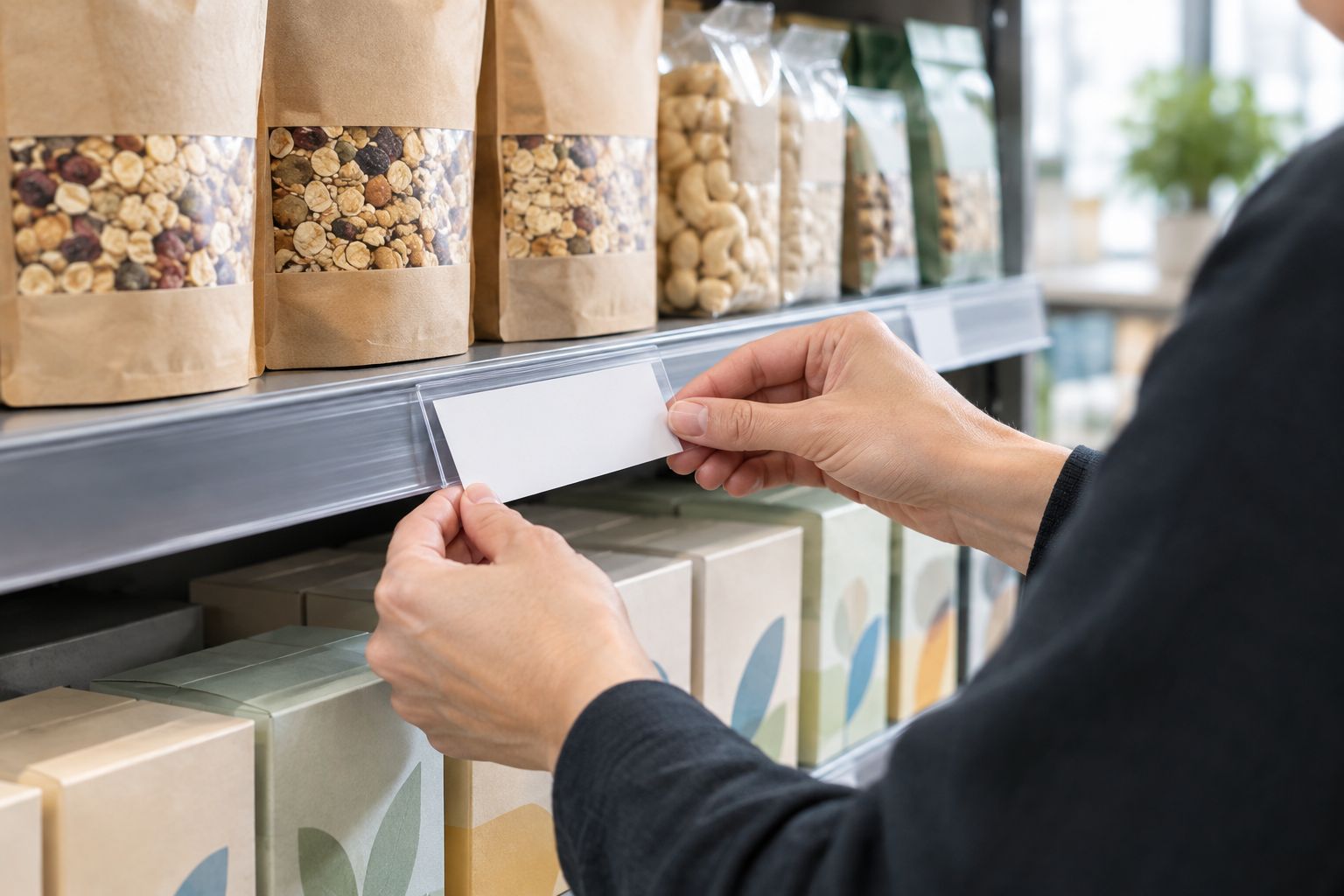
Buy after the fit test, not before it. The following options use different fixing methods, so select the one your sample bay supports rather than buying both by default.
Use a worksheet to connect the approved product record to its physical shelf position. The following bold names are suggested column headings for a worksheet you create, not controls in a particular checkout system.
Expected result: Every ticket has an approved source and an installation location. Staff can work through the batch without repeatedly searching the store.
Expected result: You have an approved, ordered print batch with a known effective date and a clear escalation path.
Use 2 passes as your working routine: an installation pass and a verification pass. This is a recommended checking method, not a claimed time saving.
Expected result: The completed worksheet distinguishes tickets that were printed, installed and verified. An unfinished location stays visible instead of disappearing into a general done status.
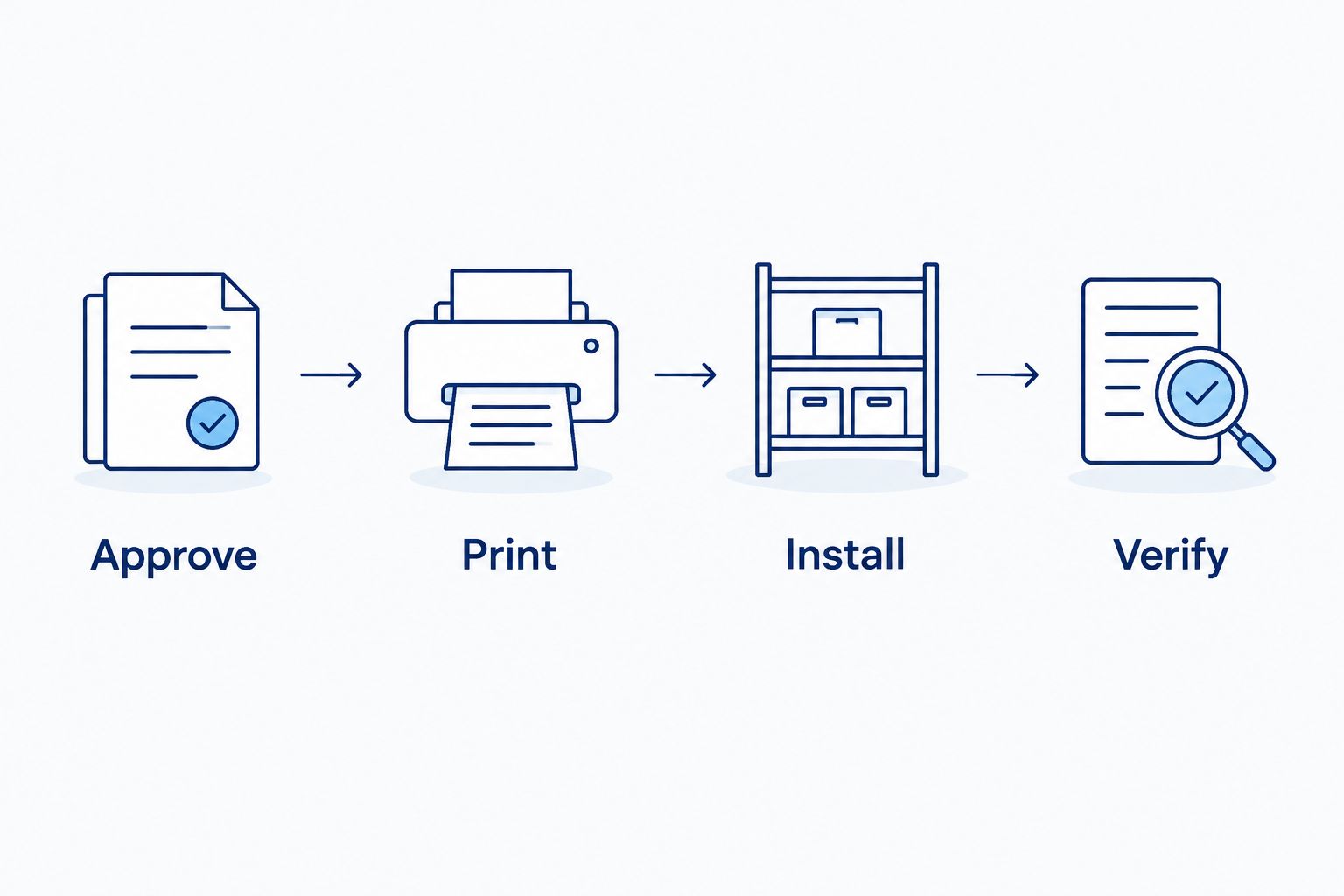
The sequence below keeps approval ahead of printing and verification after installation. Use it as the handover pattern for your 2026 shelf-change procedure.
A layout change needs the same controls even when the product's price is unchanged. Moving stock without moving its matching ticket leaves the holder in place but breaks the product-to-label relationship.
Best for: Category resets, seasonal display changes and new shelf allocations. The advantage is a consistent checking process; the trade-off is the extra location-record maintenance whenever merchandise moves.
For a 2026 layout reset, keep the revised shelf map with the completed change worksheet. Your next ticket batch should follow the new layout, not the positions that existed before the reset.
Check ticket dimensions, paper condition and the holder's intended label format. Test a replacement sample before reprinting the batch; do not assume a different fixing method will correct a ticket-fit problem.
Stop fitting that batch and inspect surface condition and preparation against the manufacturer's instructions. Confirm suitability before replacing the holder; repeated pressing is not a substitute for resolving the attachment problem.
Compare the clip profile with the actual shelf edge and inspect any existing trim. Do not force the holder or alter the shelf to make an unconfirmed fit work.
Pause sign-off for that product and check its identifier, pack size, effective date and approved record. Follow the store's authorised discrepancy procedure and repeat verification after correction.
Add the missed display to the location list and check other secondary positions for that product. Correct the worksheet before closing the change so the next batch includes that location.
Start with a manageable section and make the handover repeatable before applying it store-wide. Separate installation from verification in the worksheet even when a single operator performs both tasks.
For a Perth store with mixed fixtures, record the holder type by bay rather than treating the whole shop as one installation. The same approach works for Australia-wide buyers comparing data strips against existing shelves.
Keep a short 2026 procedure covering approval, print order, replacement, verification and exceptions. Record actual completion times if you want to assess the process; do not adopt a speed target that encourages staff to skip checks.
What are data strips used for in a retail store?
Data strips hold shelf labels and product information at the shelf edge. They provide a defined ticket position but do not update printed information automatically.
Do data strips connect to my checkout system?
Physical data strips do not connect to your checkout system. Your product-record and label-printing process supplies the information, and staff replace and verify the tickets.
Are adhesive data strips better than clip-on holders?
Adhesive and clip-on holders suit different shelf-edge conditions. Choose adhesive only after checking surface suitability, and choose clip-on only after confirming the shelf-edge profile.
What should I check before buying Cheap Shelving data strips?
Check the fixing method, product dimensions, ticket fit and intended shelf position before buying Cheap Shelving data strips. Test a sample on the actual shelf rather than assuming compatibility from a photograph.
How do I make shelf price changes faster without skipping checks?
Prepare approved tickets in shelf-walk order and separate them by bay. Keep installation and verification as distinct tasks so staff do not confuse printed tickets with completed changes.
What should I do when a shelf ticket differs from checkout?
Pause sign-off and follow your store's authorised discrepancy procedure. Check the product identifier, pack size and effective date, then verify the corrected information before closing the exception.
Do I need new labels when I move products between shelves?
You need the correct label at every new product position, even when the price remains unchanged. Move or replace the matching ticket, remove obsolete labels and update the shelf-location record.
An unchanged product can still need a ticket check. When you move a neighbouring product, add a facing or reset a bay, check the labels on either side of the changed position as well.
Make that boundary check part of your 2026 procedure. It tests the relationship shoppers actually see: stock above, matching information below.
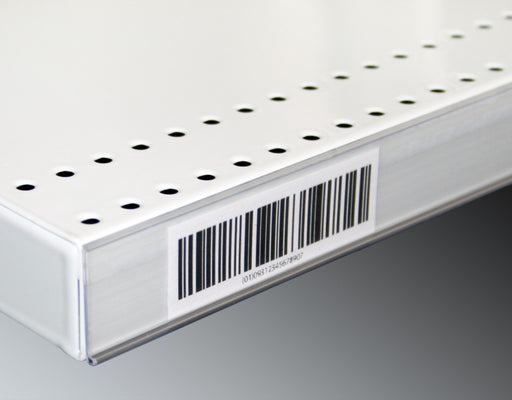
Upgrade your store's pricing and product labeling system with our Flat Adhesive Data Stripping. This cost-effective solution is designed to simplif...
View full details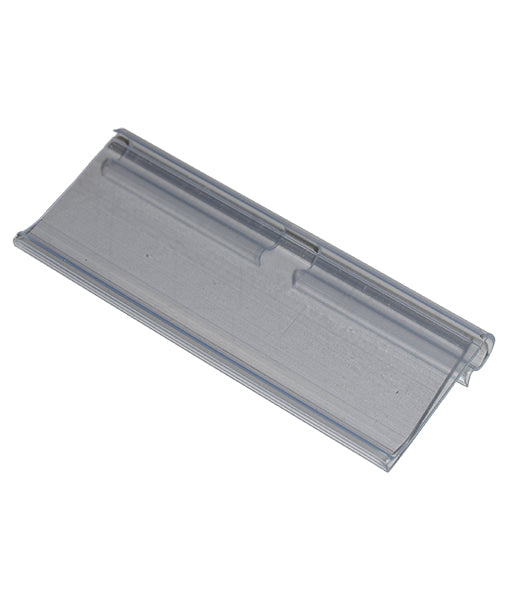
Enhance your store's product labeling and pricing system with our 100-Pack Flipper Tags. These versatile and easy-to-use tags are designed to strea...
View full detailsUpgrade your customers' shopping experience with our 28 litre Shopping Baskets featuring Metal Handles. These robust and stylish baskets are design...
View full detailsRevolutionize your customers' shopping experience with our Roller Shopping Baskets. These innovative baskets are designed for maximum convenience, ...
View full detailsMake shopping a breeze for your customers with our 28 Litre Shopping Baskets featuring Plastic Handles. These lightweight and sturdy baskets are de...
View full details{"one"=>"Select 2 or 3 items to compare", "other"=>"{{ count }} of 3 items selected"}